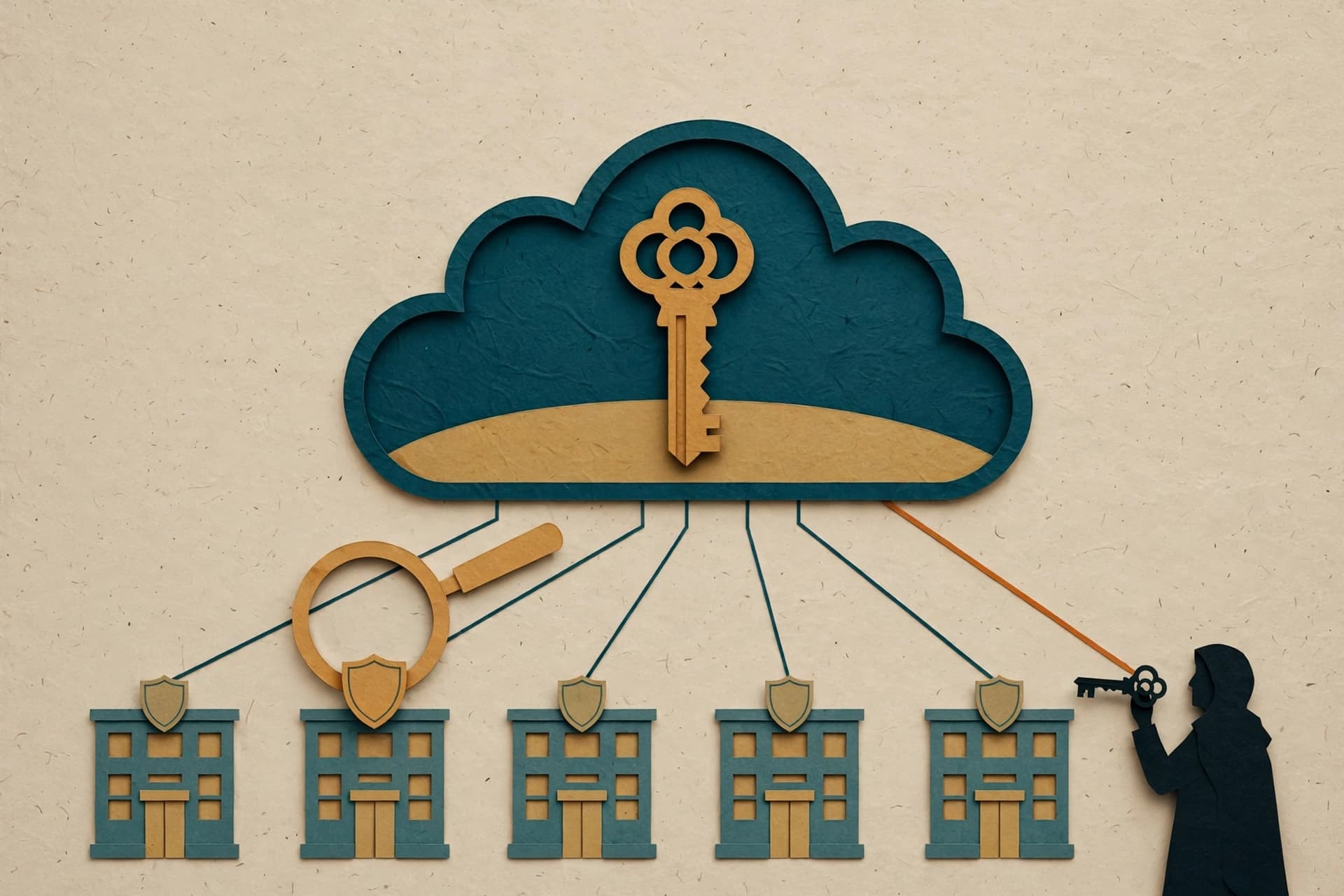

A research notebook used to be a place you opened on purpose. You picked the notebook, looked at its sources, and then asked a question.
Google’s October 23 update changes that shape a little. Gemini Notebook is now a Connected App in the Gemini app, which means a Gemini chat can manage and query notebooks in natural language. Google says it can be selected explicitly with @Gemini Notebook, and that Gemini can automatically detect when the app is relevant to a prompt.
That is useful. It is also a good reason to name a small boundary before a prompt turns into an action.
The boundary is not “good request” versus “bad request.” It is simpler: is this chat meant to ask a notebook something, or change a notebook? Those are different jobs. Treating them as the same job is how a quiet research tool becomes a mildly confusing junk drawer. Very advanced technology, defeated by a missing label.
What changed: a chat can now do more than ask
According to Google’s rollout, the Gemini Notebook Connected App can create, edit, or delete notebooks; add, update, or delete sources; list notebooks and their sources; and answer questions using notebook context. Google also gives saving notes and adding a copy of a chat as examples of the integration’s write-side work.
That makes three practical action classes:
- Query: retrieve information from a notebook or ask about its existing context.
- Write: create, edit, or delete a notebook; add, update, or delete a source; save a note; or add a chat copy.
- Connect or control: check what the app supports, connect or disconnect it, or clarify which app Gemini should use.
The first class is about looking at an existing collection. The second changes the collection. The third is about deciding whether the connection and its available actions fit the task at all.
None of those classes comes with a universal safety label. A query can still deserve source review. A write can be entirely routine. The point is to stop pretending they have the same effect.
The Notebook Action Boundary Card
Use this as an editorial workflow habit, not as a product rule. It is intentionally small enough to use before the chat gets clever on your behalf.
| Before the prompt | If the request is a query | If the request changes a notebook or source | If the app is auto-selected or unclear |
|---|---|---|---|
| Name the notebook and the outcome you want. | Inspect the notebook’s current source list, then ask the narrow question. | Name the destination notebook and the intended object: source, note, or chat copy. | Open the Connected Apps or Connectors details and check the app’s supported actions. |
| Decide whether the material belongs in this account under its current policy. | Treat the answer as grounded in that notebook’s listed sources, not as a substitute for opening them. | Re-open the notebook after the action and verify that the intended item landed where you expected. | Use an explicit @Gemini Notebook request if it makes the intended tool clear; disconnect the app rather than guessing when the action or policy is unclear. |
Take a public-research example. Suppose a notebook already contains public transit planning reports, and the question is, “What do these reports say about off-peak service?” That is a query. Check the source list, ask the question, and open the cited material if the answer will inform a decision.
Now change the request to, “Add this chat to the notebook and save the summary as a note.” That is a write. It deserves a destination check before the request and a quick verification afterward. The sentence may be only a few words longer; the effect is not.
That is the whole card. No grand permission philosophy is required. Just identify the effect before requesting it, then inspect the result when the effect changes notebook state.
Let the tool choice be explicit when it matters
Google’s current Connected Apps help says an available app can be used automatically for a relevant prompt, while @ can specify an app. The same help points to app details that show supported and unsupported actions. Those details vary by Gemini app, device, country, language, and other availability factors.
So use automatic selection for low-drama tasks only when the result will be obvious to inspect. When the request has a destination, creates something, or could add material to a notebook, a little extra naming is cheap insurance against an avoidable mystery.
“Use Gemini Notebook” is not a universal instruction. It is a tool choice. “Use Gemini Notebook to query this notebook about this question” is a clearer one. The difference is not glamorous. Neither is finding a note you did not mean to save.
Keep account and policy questions separate from the prompt
Google’s consumer Connected Apps help explicitly says work and school accounts have separate guidance. For Workspace users, Google’s rollout says access to the Gemini Notebook Connected App is controlled through Gemini and Gemini Notebook access settings, and organization administrators can control access. That is a reason to check the applicable organizational policy, not an invitation to improvise around it.
The practical default is modest: do not assume a feature is visible to every account, and do not treat a Connected App setting as a statement about what material belongs in a notebook. Availability can vary; organizational rules can vary; a carefully named request still needs an appropriate destination.
Gemini Notebook becoming a chat action is handy precisely because it removes some friction. Keep one useful bit of friction: ask whether this is a query, a write, or a connection decision. Then check the notebook after anything that writes. Your future source list will not throw a parade, but it may remain intelligible, which is close enough.
Sources
- Google Workspace Updates — “Take actions on your notebooks from Gemini Notebook directly in the Gemini app” (October 23, 2026)
- Gemini Apps Help — “Use & manage Connected Apps in Gemini”
- Google Workspace Admin Help — “Control Gemini App access to Workspace services”
- Google Workspace Updates — “An easier way to customize how Gemini works for you” (October 21, 2026)
- 9to5Google — “Gemini Notebook now available as Connected App for deeper integration” (October 23, 2026)
- Tun’s Random Thoughts — “Don’t Start With the Prompt: Build a Source Pack Before You Ask Gemini Notebook to Teach You”